Bunny Clock
A downloadable tool for Windows
🐰 Bunny Clock – User Guide
1. Overview
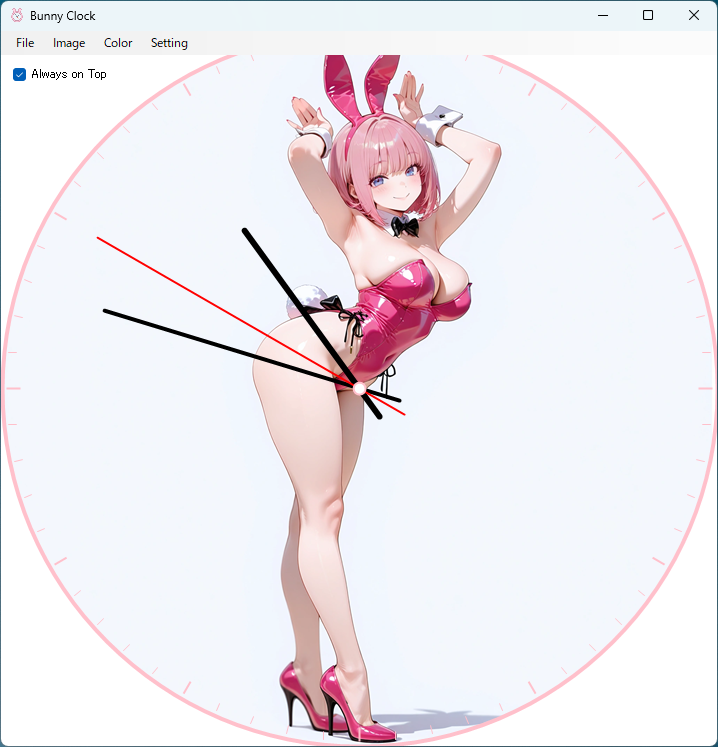
Bunny Clock is a simple and customizable desktop clock app that displays a round analog clock on your screen. You can adjust it freely to match your desktop environment with features such as background image switching, color themes, always‑on‑top mode, second hand on/off, and a minimal mode.
2. Screen Layout
● Main Screen
- Analog clock (background can be an image or a solid color)
- Menu bar
- File
- Image
- Color
- Setting
- “Always on Top” checkbox → Toggles whether the clock stays on top of other windows.
3. Menu Details
3‑1. File Menu
● Exit Closes the application. When exiting, the following settings are automatically saved and restored at the next startup:
- Color theme
- Second hand on/off
- Always on Top state
- Window position
- Window size
- Path of the last displayed image (LastImage)
3‑2. Image Menu
● Switch Image Loads a random image from the bunny folder located in the same directory as the app, and sets it as the clock background. Supported formats: PNG / JPG / JPEG / BMP
● Image Restore Function When the app starts, the background image is determined in the following order:
- If the previously displayed image (LastImage) still exists → display it
- If LastImage does not exist or was deleted → display a random image from the bunny folder
- First launch → display a random image from the bunny folder
When you press Switch Image, the selected image will also be restored at the next startup.
3‑3. Color Menu
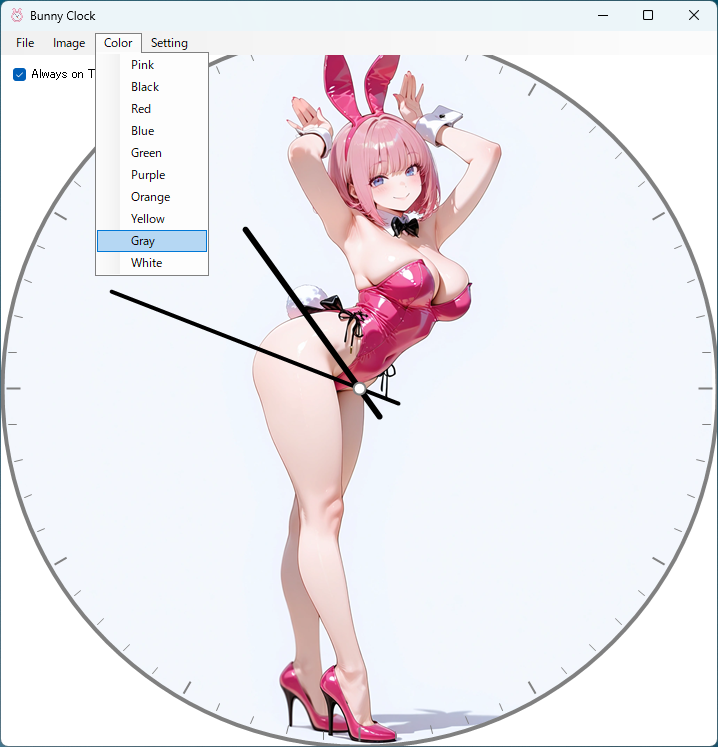
Allows you to change the clock’s color theme. The following elements will be unified to the selected color:
- Clock background color (when no photo is used)
- Outer ring
- Ticks (marks)
Available colors: Pink / Black / Red / Blue / Green / Purple / Orange / Yellow / Gray / White
3‑4. Setting Menu
● Show Second Hand Toggles the visibility of the second hand.
- Checked → Show second hand
- Unchecked → Hide second hand
This setting is automatically saved when the app closes.
4. Minimal Mode (Round Mode)
When the app becomes inactive (loses focus), it automatically switches to Minimal Mode.
Features of Minimal Mode
- Menu bar and checkbox are hidden
- Window border disappears, becoming a perfect circle
- Background becomes transparent, making the clock appear to float Clicking the app returns it to normal mode.
5. Saving Settings (settings.ini)
When the app closes, all settings are saved to settings.ini. They are automatically restored at the next startup. If the INI file does not exist, it will be created automatically.
6. Adding Your Own Images
Add your images to the bunny folder. Supported formats: PNG / JPG / JPEG / BMP Vertical or horizontal images can be used, but since the clock is circular, square images are recommended.
7. Usage Examples
- Keep the clock small and always visible on the desktop → Turn on Always on Top and adjust the size
- Use it as a photo clock → Add your favorite images to the bunny folder and press Switch Image → The selected image will be restored at the next startup
- If the second hand is distracting → Setting → uncheck Show Second Hand
- Use a clean, floating round clock while working → When the app becomes inactive, it automatically switches to Minimal Mode
Download
Click download now to get access to the following files:


Leave a comment
Log in with itch.io to leave a comment.